GUI and Backends
fargv can display a graphical form for any parameter set — no extra code
required. The --user_interface auto-param selects the UI at runtime; the
FargvNamespace observer pattern lets a GUI stay in sync with a config file.
–user_interface
When at least one GUI framework is available, fargv injects a
--user_interface choice parameter automatically. The available choices
depend on what is installed:
Value |
Requires |
Notes |
|---|---|---|
|
nothing |
default; no GUI |
|
|
always available on desktop Python |
|
PyQt6, PyQt5, PySide6, or PySide2 |
any one binding |
|
|
auto-selected inside Jupyter; not shown in CLI |
# Launch the Tk dialog pre-populated with CLI values
python train.py --data_dir=/datasets --user_interface=tk

# Short form (auto-inferred)
python train.py --data_dir=/datasets -U tk
CLI values parsed before the GUI opens pre-populate the form fields, so users can override specific parameters via the UI while keeping the rest from the command line.
Tkinter GUI
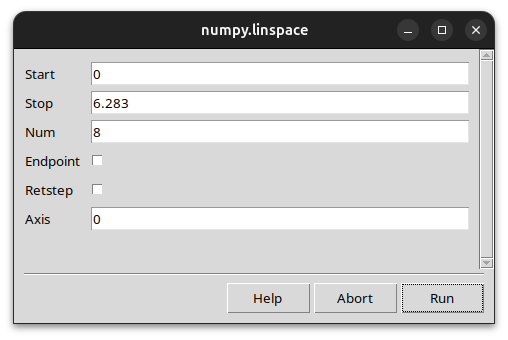
The Tk dialog renders one row per parameter:
bool →
ttk.Checkbuttonchoice →
ttk.Combobox(read-only)variadic list →
ttk.Entry(space-separated tokens)subcommand →
ttk.Comboboxselector + dynamicttk.LabelFramethat re-renders when the selection changes; values typed before switching are preservedeverything else →
ttk.EntrywithFocusOutvalidation (invalid input reverts to the parameter’s default)
Hovering over any label or widget shows a tooltip with the parameter’s description, type, and default value.
Three buttons are always present:
Button |
Key |
Action |
|---|---|---|
Run |
Enter (when focused) |
Apply values and close |
Abort |
Escape |
Discard and close |
Help |
F1 |
Show full |
The Tk window exits completely on Run — no residual Tk state that could interfere with other GUI code the application runs afterwards.
Programmatic use
from fargv.gui_tk import available, show

if available:
    ok = show(parser, title="My App")
    if not ok:
        raise SystemExit("Aborted by user")
Qt GUI
The Qt backend (fargv.gui_qt) renders the same layout using whichever Qt
binding is installed. Use it the same way:
python train.py --user_interface=qt
Jupyter / ipywidgets
Inside a Jupyter kernel the UI is forced to "jupyter" automatically and the
--user_interface parameter is not shown. The ipywidgets backend renders
an inline form directly in the notebook output cell.
FargvNamespace + backends
FargvNamespace (returned when return_type="namespace") maintains an
observer list. Each backend is notified whenever a parameter value changes.
import fargv
from fargv import FargvConfigBackend, FargvTkBackend

p, _ = fargv.parse(
    {"lr": 0.001, "epochs": 10, "tag": "exp1"},
    return_type="namespace",
)

# Persist every change to a JSON file
p.link(FargvConfigBackend("~/.myapp.config.json"))

# Open a Tk dialog for interactive adjustment
p.link(FargvTkBackend("My App"))

# Any attribute assignment triggers validation + all backends
p.lr = 5e-4
FargvConfigBackend
attach: loads the JSON file (if it exists) directly into the namespace parameters, bypassing
__setattr__so no re-entrant notifications occur.on_param_changed: writes the full
namespace.as_dict()snapshot as JSON to the configured path.
FargvTkBackend
attach: calls
show_namespace(namespace, title=...)— opens the Tk dialog and blocks until the user clicks Run or Abort.on_param_changed: no-op (the modal window is already closed by then).
Writing a custom backend
from fargv import FargvBackend

class WandbBackend(FargvBackend):
    def attach(self, namespace):
        import wandb
        wandb.config.update(namespace.as_dict(), allow_val_change=True)

    def on_param_changed(self, namespace, name, value):
        import wandb
        wandb.config.update({name: value}, allow_val_change=True)

p.link(WandbBackend())
Availability check
from fargv.gui_tk import available as tk_available
from fargv.gui_qt import available as qt_available

print(f"tk: {tk_available}  qt: {qt_available}")